Set up the provider
For: platform owners. Setup: ModularIoT (the web application at modulariot.com/app).
The platform contracts a geocoding provider and pays for it. Each organization uses it through a connection that a platform owner creates. This guide gets the provider ready and connects an organization.
| Step | Where | Selector scope |
|---|---|---|
| 1. Store the provider’s token | Settings › Credentials | Platform |
| 2. Choose the provider | Settings › Connections | Platform |
| 3. Connect the organization | Settings › Connections | The organization |
| 4. Give it a quota | Settings › Platform › Geocoding | Any |
You change the scope in the organization selector, at the top right. Platform is the first option in the list and only platform owners see it.
Store the provider’s token
- Change the selector to Platform.
- Open Settings › Credentials and click Add credential.
- Search for
mapand choose Mapbox or Google Maps. - Paste the token and save.
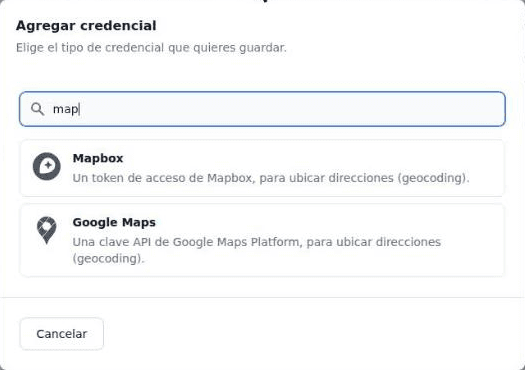
Use a Mapbox server token, without URL restrictions, with permanent mode enabled in your Mapbox account. The token is not shown again.
Choose the provider
- With the selector on Platform, open Settings › Connections.
- If the Platform geocoding card exists, click its three dots and Edit. If not, click New connection and choose Geocoding · platform provider.
- Fill in the form and click Save.
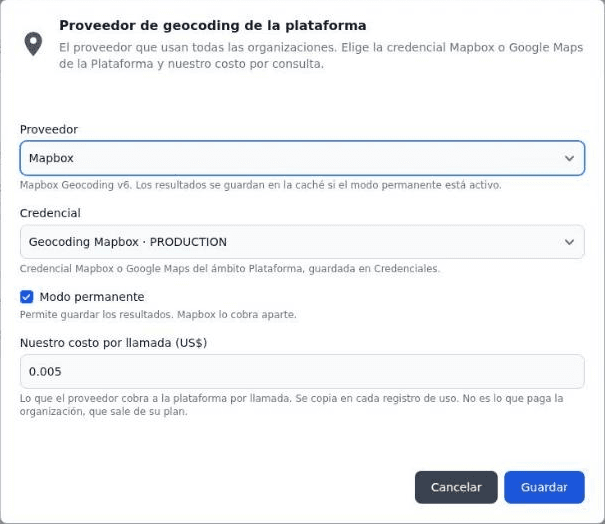
| Field | What to enter |
|---|---|
| Provider | Mapbox |
| Credential | The one from step 1 |
| Permanent mode | On. Without it, no provider result is used: all go to review |
| Our cost per call (USD) | What the provider charges per call in permanent mode, under its contract, for example 0.005. It is copied into each usage row. It is not what the organization pays |
Pitfall: with Google Maps as the provider, each call is charged and the place goes to review, because the platform does not store Google results (default setting, pending a review of its terms). Use Mapbox with permanent mode.
With Mapbox, saving checks the token at no cost and the card turns Active. Google is not tested on save: Test geocodes an address and the provider charges for it. The card’s status does not block calls.
Connect the organization
- Change the selector to the organization.
- Open Settings › Connections and click New connection.
- Choose Geocoding · platform provider.
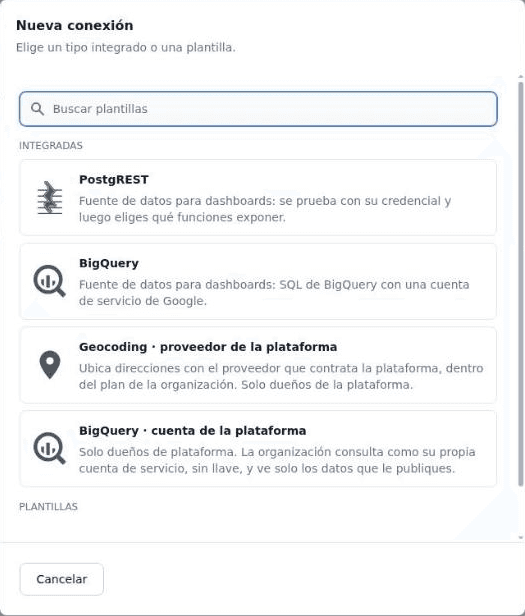
The Geocoding · ModularIoT card appears, active:
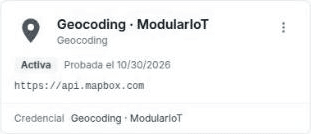
The connection stores no token: it uses the platform’s. Repeating the step does not create another one. If the organization had another geocoding connection, it is deleted.
Without this connection, the organization still resolves by geofence, Plus Code, coordinates, internal addresses and cache. The only thing it does not do is call the provider: those places go to review with geocoding: this organization has no geocoding connection; a platform owner adds it in Settings › Connections.
To remove it, click its three dots and Delete.
Give it a quota
If the quotas apply, the organization needs a subscription. Follow Assign an organization’s quota.
Check
Resolve an address that is not in the internal addresses or in the cache (see Your first location) and open Settings › Trips › Monthly usage. The Quota card must add one call. If the provider did not find the address, the call appears in the None or Provider row with the result To review.
Through the API
| Step | Call |
|---|---|
| 2 | PUT /api/v1/platform/geocoding-provider with provider, credentialProfileId, permanent, costPerRequestUsd |
| 3 | POST /api/v1/platform/orgs/{slug}/geocoding-connection |
Details in Plan, usage and provider API.